|
Guide for Users with Screen Readers
We'll be improving MorphVOX to accomodate screen readers like JAWS better.
One of our customers came up with a guide to make Quick Voices more convenient to
use.
The skins and grid table interface
of MorphVOX makes it very tricky for screen reader
users. Until an update with an
easier way to manage this comes out, here is a work around. It may not be perfect,
but if you want a certain quick voice, it gets the job done.
-------------------------------------------------------------------------------------------------------------------------
Start MorphVOX Pro.
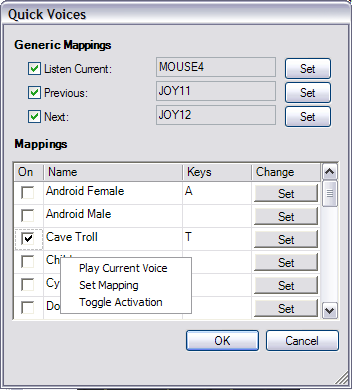
Go to the tools menu, and choose the "quick voices" option.
You'll get a few options
to check/uncheck, and set their toggle keys.
'Listen current' This lets you listen
to the alias/quick voice samples. Make sure
to click checkmark 'on' and go to the next step for this
option, which will set the key for this function as well as make whichever alias
you want to be the current one.
There is a read-only field followed by a 'set button'
hit the set button and you will then be prompted to enter a keystroke into the field.
Enter the keystroke you want to assign this option. Hit the 'ok' button and move
to the next option which should be 'previous' or 'next'.
Check and set the keys
for each one the same way. Some toggle settings may not seem to be accepted and
you may have to enter quickvoices and try again.
Then you may exit the grid table.
The MorphVOX window should still be open and you will then be able to change your
voice to as many different voice aliases your program currently has installed.
Setting
the 'next' key to 'control-n' or your own key combination will allow you to listen
and cycle through all the different voice aliases that are installed. If you speak
into your microphone while doing this, you will hear the way your voice is changed,
that is if you have "Listen" on the tools menu checked, and make sure the microphone
is not muted.
If you set the 'listen current' key to 'control-s' or another key
combo you like, hitting that keystroke will make whatever alias you are on, the
current one and play the sample for you. The 'next' toggle you have set will take
you to the next voice alias.
-------------------------------------------------------------------------------------------------------------------------
|