nt011 Shopping Cart
Click for English 日本語のためのかちりと言う音 Klicken Sie hier für Deutschen
Integrating MorphVOX Voice Altering Software
  AIM
  Adobe Captivate
  Audacity
  BATTLEFIELD 2 (BF2)
  Counter-Strike
  Day of Defeat
  Dungeons And Dragons Online (DDO)
  GoogleTalk
  GSC Voice Chat
  Lord of the Rings Online (LOTRO)
  MSN Messenger
  Roger Wilco
  Second Life
  Skype
  Sony Sound Forge
  TeamSpeak
  There (online)
  Windows Live Messenger
  World of Warcraft
  Ventrilo
  Vonage SoftPhone
  XFIRE
  Yahoo Messenger

Working with Skype

Our testing with Skype produced the best quality VoIP sound when using MorphVOX voice altering software. 

Installation is easy.  If you have set MorphVOX as your default capture device, the typical installation of Skype will automatically use it and nothing needs to be done but to run MorphVOX.

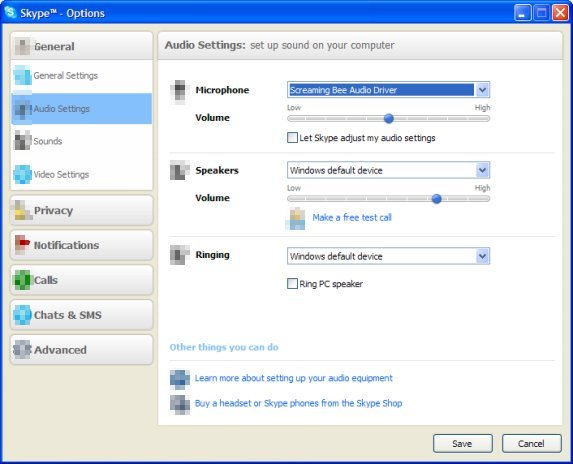
To set up MorphVOX specifically, go to the Skype menu: Tools: Options.  You'll see the dialog below. 

Skype Settings
Just select Sound Devices on the left and set the Audio In to "Screaming Bee Audio Driver"

Working with TeamSpeak

If you have set MorphVOX voice altering software as your default capture device, the typical client installation of TeamSpeak will automatically use it and nothing needs to be done but to run MorphVOX.

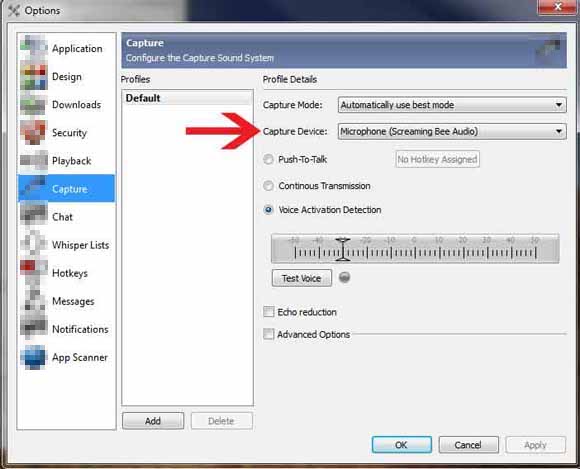
To set up MorphVOX specifically for TeamSpeak, go to the TeamSpeak menu: Settings: Options.  You'll see the dialog below. 

TeamSpeak Preference
On the Sound Devices tab set the Input Device to "Screaming Bee Audio Driver" and click OK.

Working with XFIRE

If you have set MorphVOX voice altering software as your default capture device, the typical client installation of XFIRE will automatically use it and nothing needs to be done but to run MorphVOX.

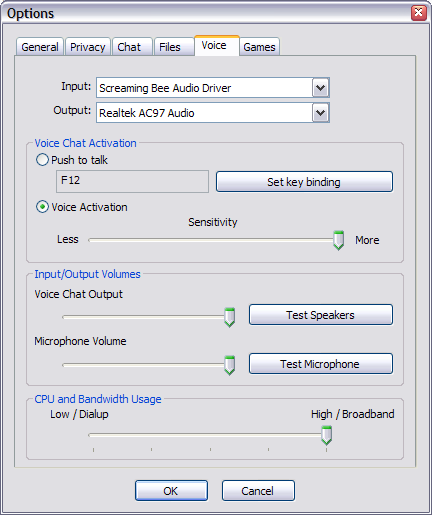
To set up MorphVOX specifically for XFIRE, go to the XFIRE menu: Tools: Options....  You'll see the dialog below. 

XFIRE Options
On the Voice tab set the Input  to "Screaming Bee Audio Driver" and click OK.

Working with Yahoo! Messenger

If you have set MorphVOX voice altering software as your default capture device, the typical client installation of Yahoo! Messenger will automatically use it and nothing needs to be done but to run MorphVOX.

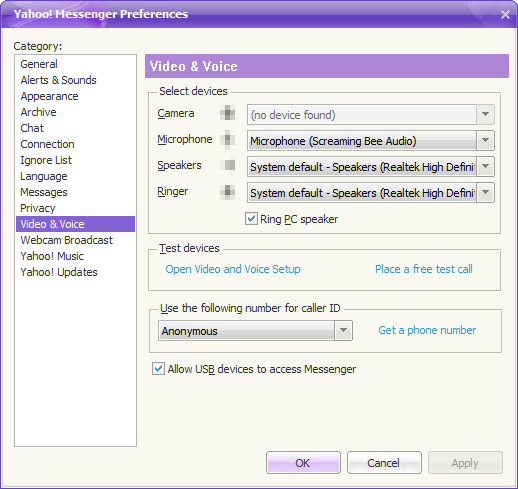
To set up MorphVOX specifically for Yahoo! Messenger, go to the menu: Messenger: Preferences.  You'll see the dialog below. 

Yahoo Preference
On the  Calling & Audio  tab set the Microphoneto "Screaming Bee Audio Driver" and click OK.

Working with AIM

If you have set MorphVOX voice altering software as your default capture device, the typical client installation of AIM will automatically use it and nothing needs to be done but to run MorphVOX.

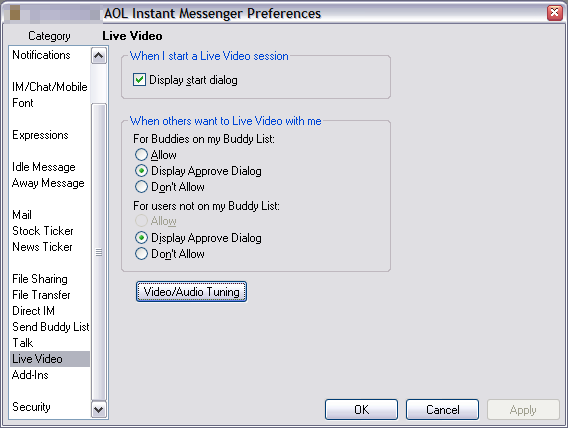
To set up MorphVOX specifically for AIM, go to the menu: My AIM: Edit Options: Edit Preferences....  You'll see the dialog below. 

Yahoo Preference

Select the Category: Live Video and click the Video/Audio Tuning button.

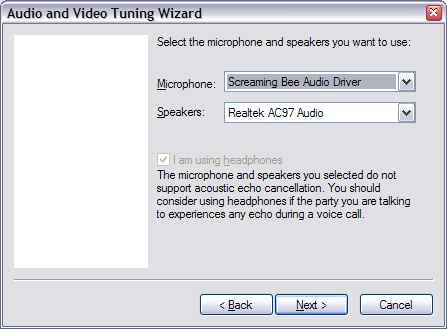
You will then be prompted with dialogs to set up the speakers, and finally with the dialog shown below.

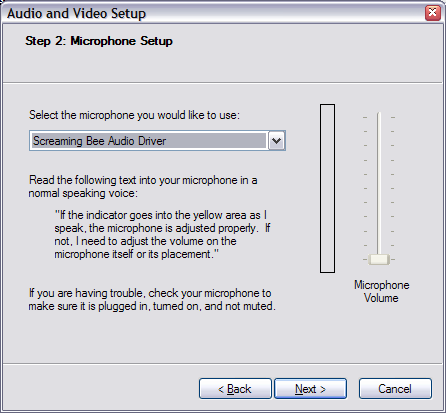
Set Microphone to "Screaming Bee Audio Driver" and click Next
Yahoo Preference
Step through the rest of the dialogs and press Finish to complete the setup.

Working with MSN Messenger

If you have set MorphVOX voice altering software as your default capture device, the typical client installation of MSN Messenger will automatically use it and nothing needs to be done but to run MorphVOX.

To set up MorphVOX specifically for MSN Messenger, go to the menu: Tools: Audio and Video setup.  Click 'Next' until you see the dialog below. 

MSN
On the microphone drop down list select "Screaming Bee Audio Driver" and click Next until setup is finished.

Working with GoogleTalk

If you have set MorphVOX voice altering software as your default capture device, the typical client installation of GoogleTalk will automatically use it and nothing needs to be done but to run MorphVOX.

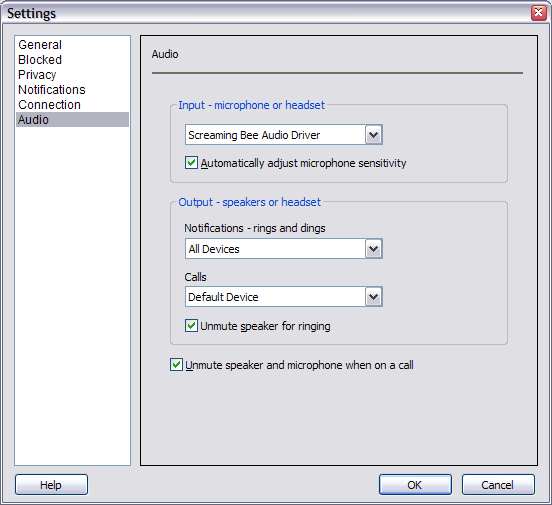
To set up MorphVOX voice altering software specifically for GoogleTalk, click the Settings link.  In the Settings dialog select 'Audio'  on the left side and you will see the dialog below.

GoogleTalk
On the Input - microphone or headset  drop down list select "Screaming Bee Audio Driver" and click OK.

Working with Ventrilo

If you have set MorphVOX voice altering software as your default capture device, the typical client installation of Ventrilo will automatically use it and nothing needs to be done but to run MorphVOX.

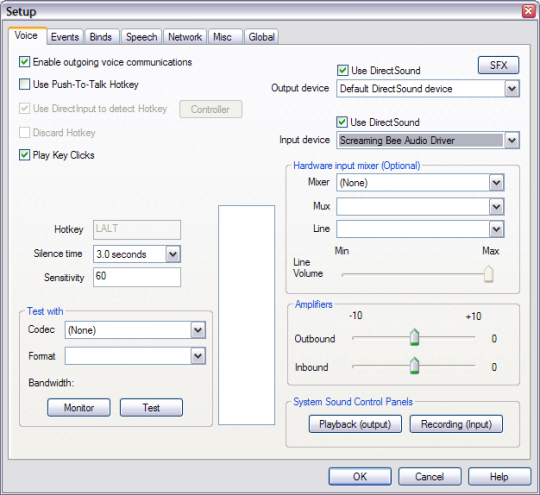
To set up MorphVOX specifically for Ventrilo, click the ' Setup...' button .  In the Settings dialog click the 'Voice'  tab on the top and you will see the dialog below.

Ventrilo
On the Input device  drop down list select "Screaming Bee Audio Driver" and click OK.

Working with Roger Wilco

If you have set MorphVOX voice altering software as your default capture device, the typical client installation of Roger Wilco will automatically use it and nothing needs to be done but to run MorphVOX.

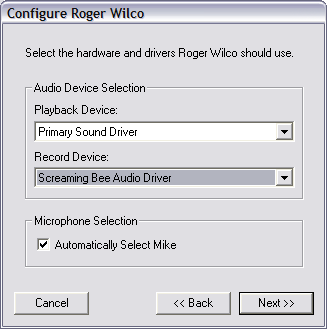
To set up MorphVOX specifically for Roger Wilco, click the ' Adjust' tab.  In the Adjust dialog click the 'Configure' button. Click 'Next' until you see the dialog below.

Roger Wilco
On the Record Device  drop down list select "Screaming Bee Audio Driver" and click 'Next' until configure is finished.

Click to Go Back
Skype is a trademark of Skype Technologies S.A.; Ventrilo is a trademark of Flagship Industries, Inc.; RogerWilco is a trademark of GameSpy; AOL Instant Messenger is a registered trademark of America Online; MSN Messenger is a trademark of Microsoft Corporation; Yahoo is a trademark of Yahoo! Inc.; TeamSpeak is a registered trademark of TeamSpeak Consulting, Inc.; Google is a trademark of Google Technology Inc. Second Life is a trademark of Linden Research, Inc. Vonage SoftPhone™ of Vonage. World of Warcraft is a trademark of Blizzard Entertainment
Copyright © 2005-2008, Screaming Bee LLC,
All Rights Reserved.