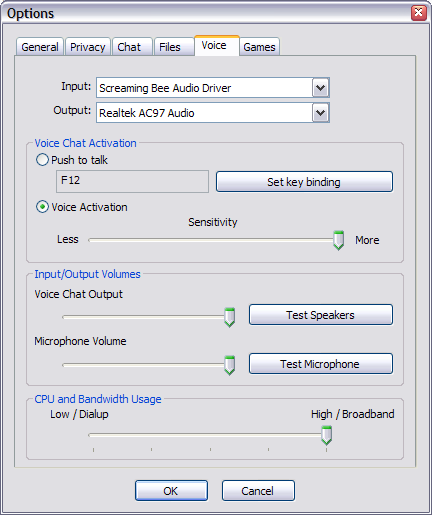
To set up MorphVOX specifically for XFIRE, go to the XFIRE menu:
Tools:
Options...
. You'll see the dialog below.
On the Voice tab set the
Input
to "Screaming Bee Audio Driver" and
click OK.
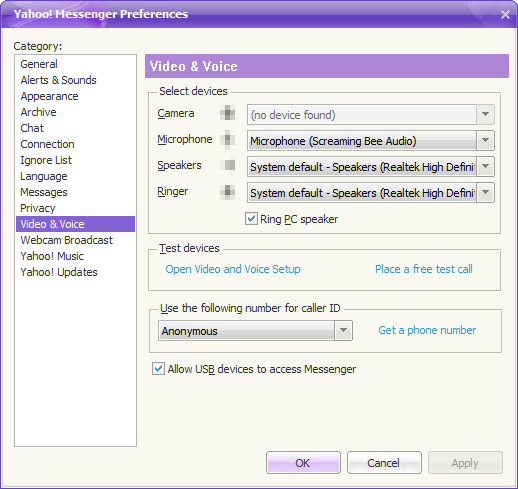
To set up MorphVOX specifically for Yahoo! Messenger, go to the menu:
Messenger:
Preferences
. You'll see the dialog below.
On the Calling & Audio
tab set the Microphoneto "
Screaming Bee Audio
Driver"
and click OK.
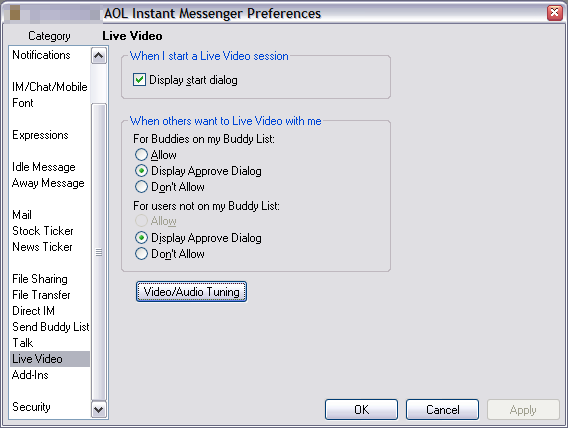
To set up MorphVOX specifically for AIM, go to the menu:
My AIM: Edit
Options: Edit Preferences...
. You'll see the dialog
below.
Select the Category: Live Video and click the
Video/Audio
Tuning
button.
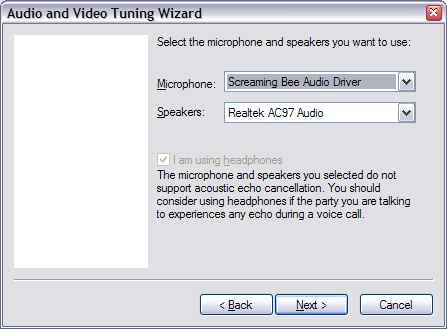
You will then be prompted with dialogs to set up the speakers, and finally
with the dialog shown below.
Set Microphone to "
Screaming
Bee Audio Driver"
and click Next
Step through the rest of the dialogs and press
Finish
to complete the setup.
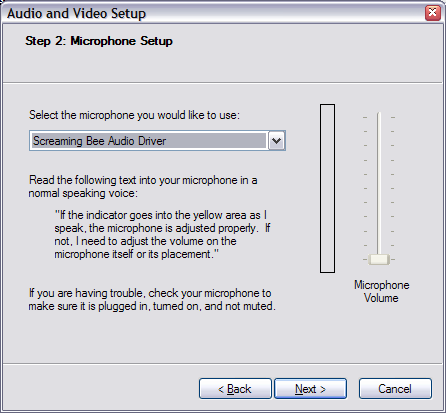
To set up MorphVOX specifically for MSN Messenger, go to the menu:
Tools:
Audio and Video setup
. Click 'Next' until you see the dialog
below.
On the microphone drop down list select "
Screaming
Bee Audio Driver"
and click Next until setup is
finished.
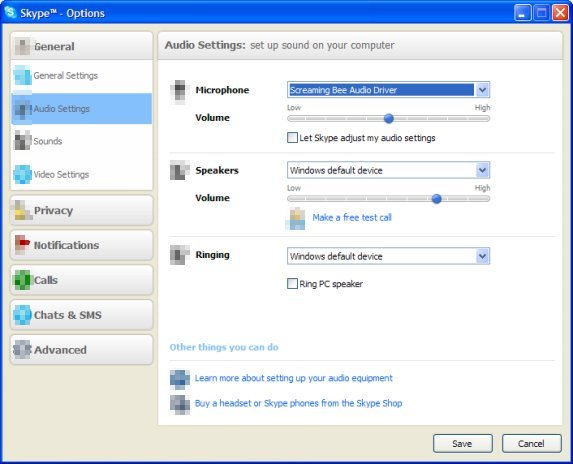
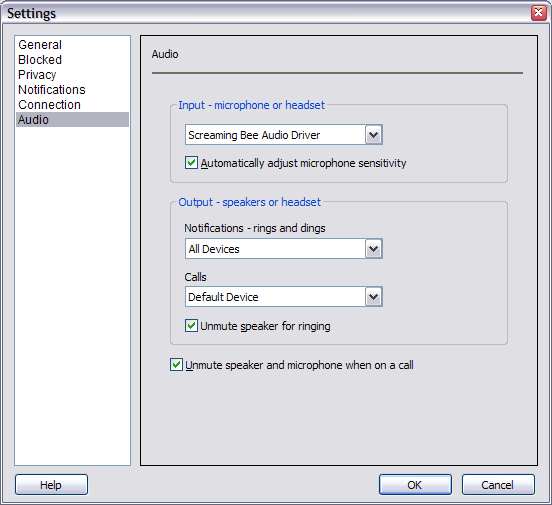
To set up MorphVOX voice altering software specifically for GoogleTalk, click the Settings
link. In the Settings dialog select 'Audio' on the
left side and you will see the dialog below.
On the Input - microphone or headset
drop down list select "Screaming Bee Audio Driver" and
click OK.
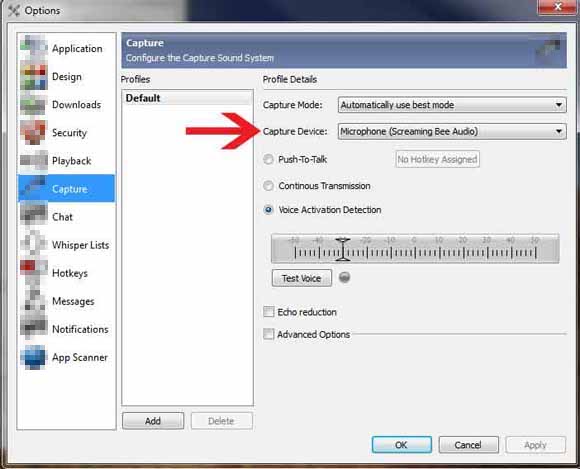
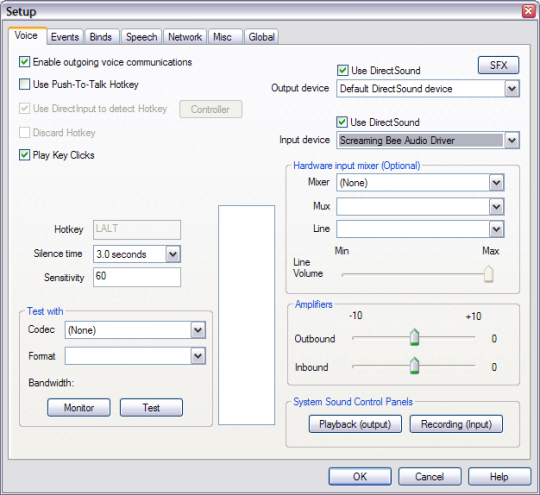
To set up MorphVOX specifically for Ventrilo, click the ' Setup...'
button . In the Settings dialog click the 'Voice'
tab on the top and you will see the dialog below.
On the Input device drop
down list select "Screaming Bee Audio Driver" and click OK.
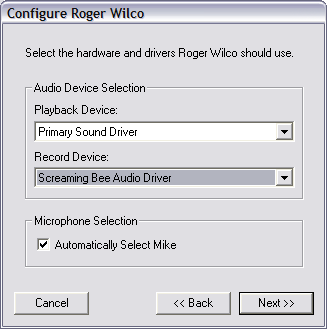
To set up MorphVOX specifically for Roger Wilco, click the ' Adjust'
tab. In the Adjust dialog click the 'Configure' button.
Click 'Next' until you see the dialog below.
On the Record Device drop
down list select "Screaming Bee Audio Driver" and click 'Next'
until configure is finished.
Este sitio utiliza cookies y otras tecnologías similares para proporcionar la funcionalidad del sitio, analizar el tráfico y el uso, y entregar contenido adaptado a sus intereses. Infórmese Más