|
 |
 |
 |
 |
|
File Morphing |
|
|
 |
 |
 |
|
 |
|
MorphVOX can load in an existing audio file and apply the current voice alias to
output a new "morphed" file. This is ideal for enhancing existing
audio content or creating new voices.
MorphVOX can import Microsoft Wave (.wav), MP3 Format (.mp3), Ogg Vorbis (.ogg),
and Windows Media Format (.wma) files for conversion to .wav, .ogg, and .wma
files.
|
|
|
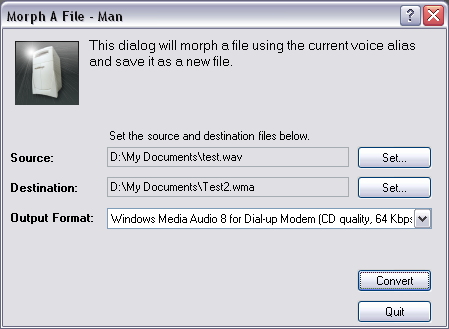
Morph a File Dialog Settings
|
 |
Set Source Press this button
to set the existing audio file you would like to convert. You can
choose from the following file types to import: .wav, .ogg, wma and .mp3 |
|
Set Destination
Press this button to set the destination file for the conversion.
You can choose from the following file types to convert to: .wav, ogg, and wma.
|
Output Format
Choose a file format type to adjust the audio output quality.
|
|
Play
The Play button appears after converting the
file. Pressing "Play" will launch your default wave audio player and start
playing the destination file so you can hear the final result.
|
|
Convert
Begin morphing the source file and writing out the destination file. The
above progress meter shows the conversion progress. This button will change to
Abort during conversion so you can stop the convert process before
completion.
* If your get an error converting to a file you just played you will need to close
the file in your player before you can write over it again.
|
|
Quit
Closes the dialog. If you have completed a conversion,
the destination file will remain after closing this dialog.
|
|
 |
|
Click to Go Back |
 |
|
|
|
|
|
 |
|
|
|